> ## Documentation Index
> Fetch the complete documentation index at: https://docs.carbonpunk.ai/llms.txt
> Use this file to discover all available pages before exploring further.
# Integrations Overview
> Connect your logistics providers with our platform
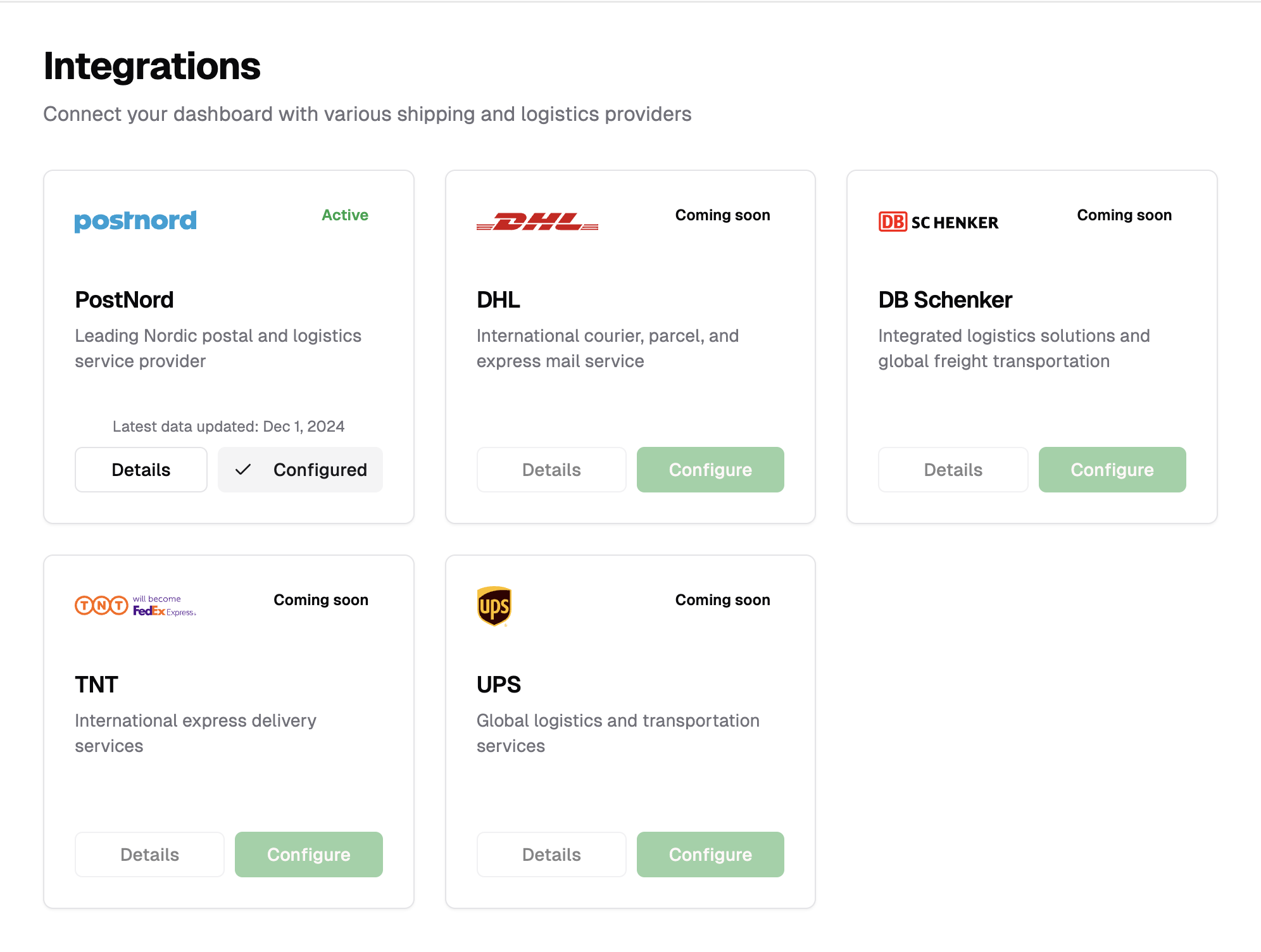 The integrations section shows all available integration options at a glance. You'll see a grid of supported logistics providers, each with their connection status and quick-access setup buttons. The color-coded status indicators help you quickly identify active, pending, and available integrations.
New integrations are being added regularly. Check back often for updates or subscribe to our changelog.
## Available Integrations
Currently, we support PostNord's logistics portal to access shipping data and tracking information.
The integrations section shows all available integration options at a glance. You'll see a grid of supported logistics providers, each with their connection status and quick-access setup buttons. The color-coded status indicators help you quickly identify active, pending, and available integrations.
New integrations are being added regularly. Check back often for updates or subscribe to our changelog.
## Available Integrations
Currently, we support PostNord's logistics portal to access shipping data and tracking information.
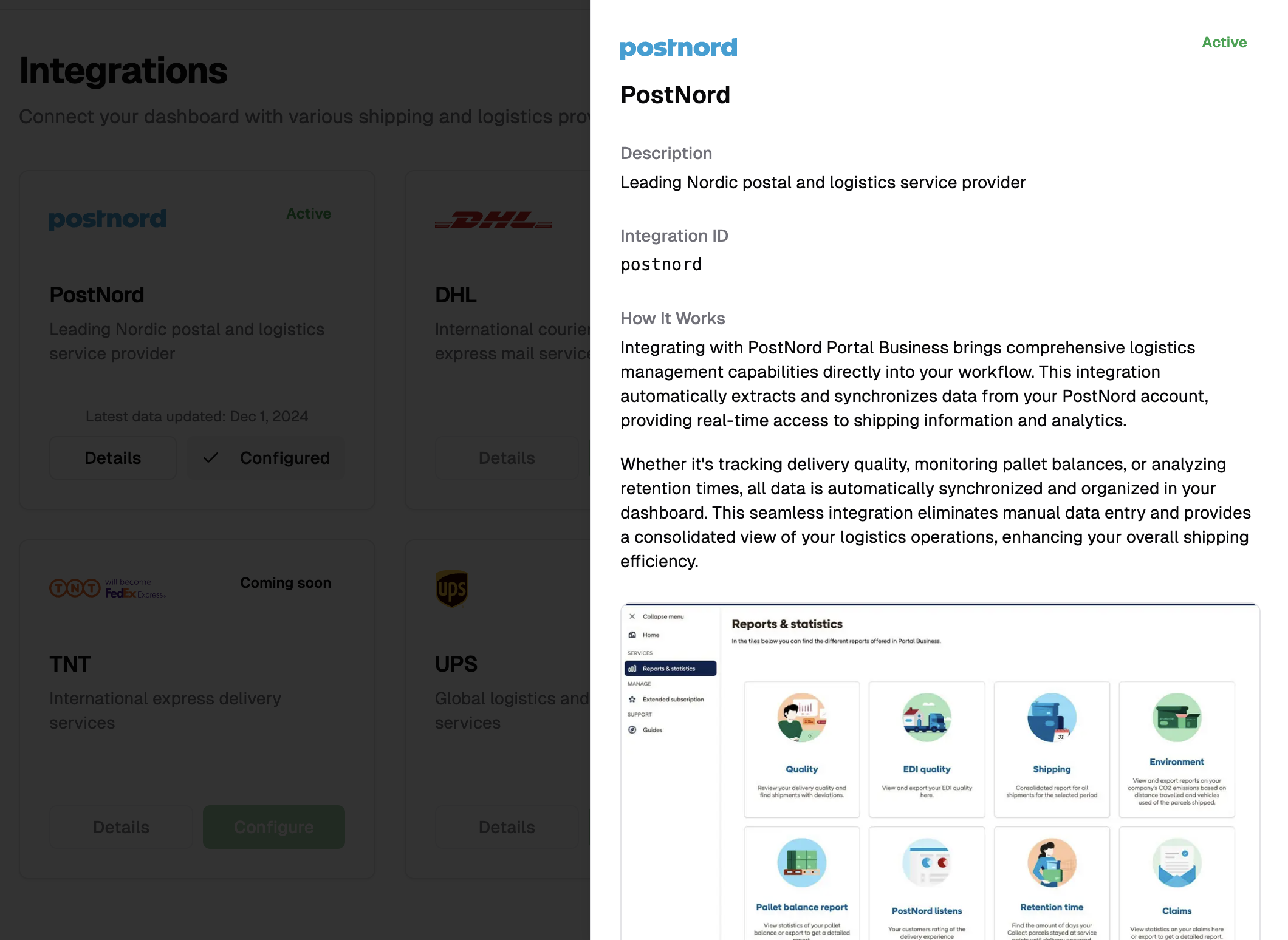 The PostNord integration provides access to:
* Shipment data from PostNord's customer portal
* Automated data extraction and synchronization
* Historical shipping records
### Setup
1. Enter your PostNord portal username and password in our platform
2. Data will be automatically extracted monthly on the 1st of each month
## Detailed Setup Process
Setting up an integration is straightforward and secure. Here's what you need to know:
### 1. Provider Selection
Start by choosing your logistics provider from our supported integrations dashboard. Each provider tile shows its current status and available features.
### 2. Credential Configuration
After selecting your provider, you'll need to:
* Enter your API credentials or portal login details
* Configure sync frequency preferences
* Set up any provider-specific options
The PostNord integration provides access to:
* Shipment data from PostNord's customer portal
* Automated data extraction and synchronization
* Historical shipping records
### Setup
1. Enter your PostNord portal username and password in our platform
2. Data will be automatically extracted monthly on the 1st of each month
## Detailed Setup Process
Setting up an integration is straightforward and secure. Here's what you need to know:
### 1. Provider Selection
Start by choosing your logistics provider from our supported integrations dashboard. Each provider tile shows its current status and available features.
### 2. Credential Configuration
After selecting your provider, you'll need to:
* Enter your API credentials or portal login details
* Configure sync frequency preferences
* Set up any provider-specific options
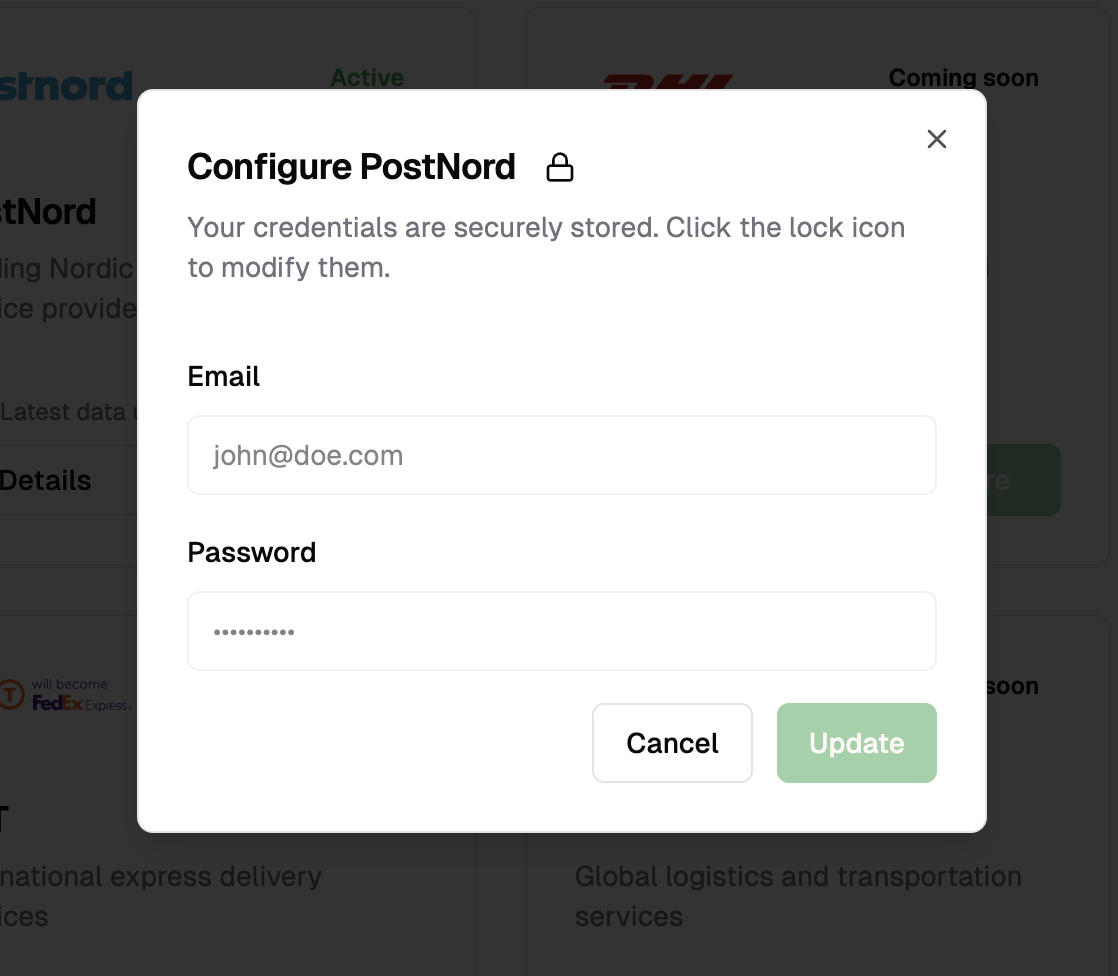 For security, all credentials are encrypted and stored securely. You can always modify these later if needed.
### 3. Managing Your Integration
For security, all credentials are encrypted and stored securely. You can always modify these later if needed.
### 3. Managing Your Integration
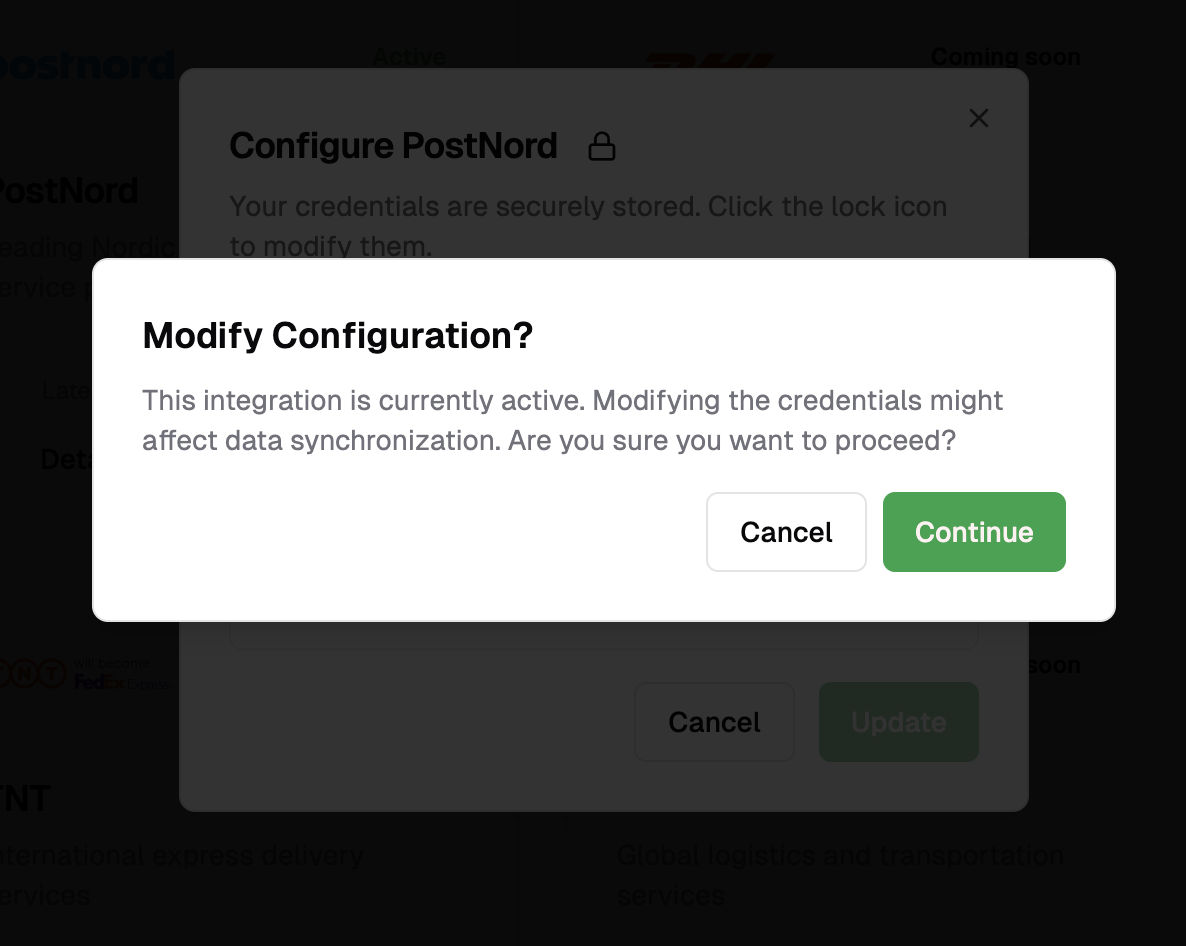
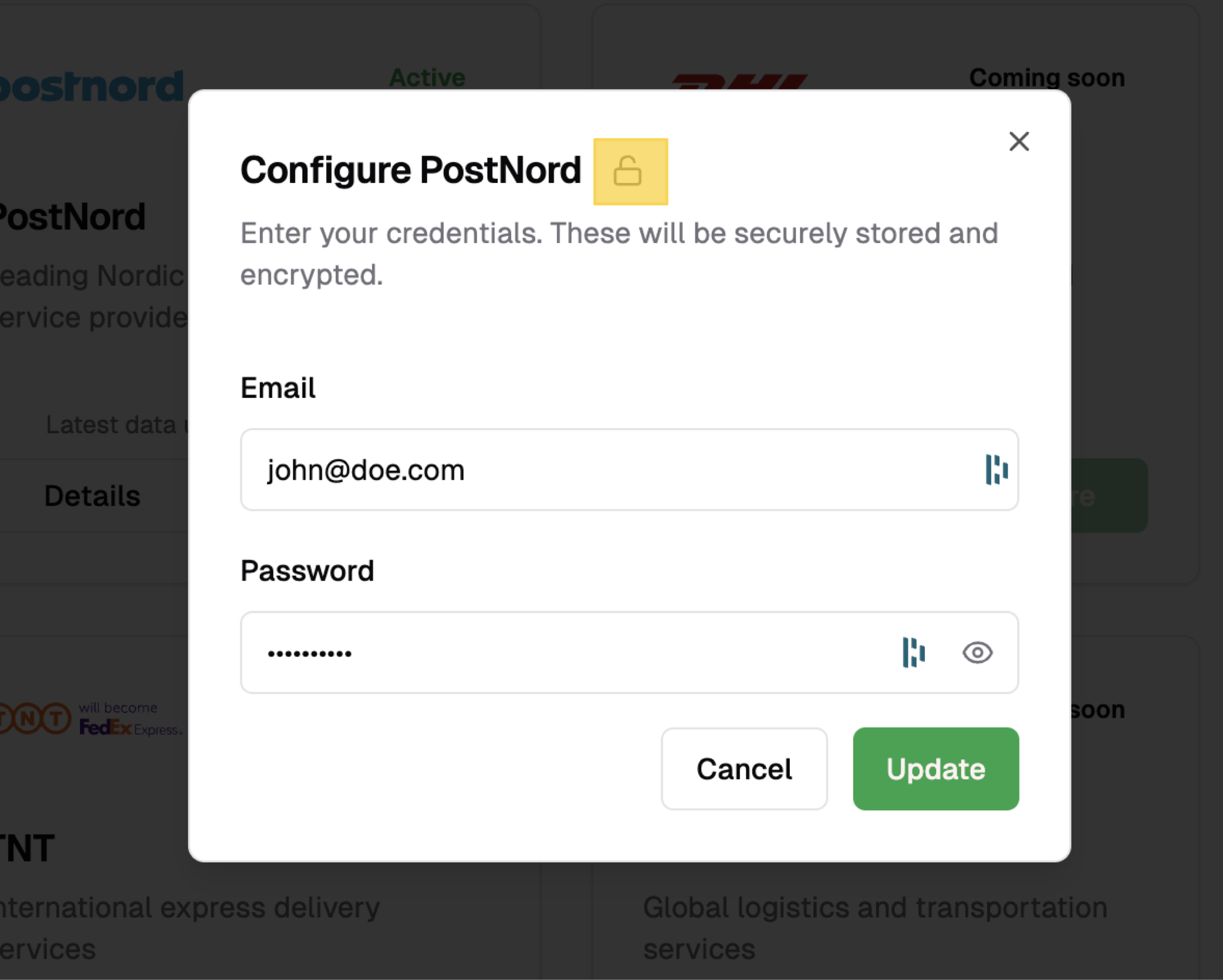 Your integration settings are protected by default. To make changes:
1. Locate the integration you want to modify
2. Click the lock icon (highlighted in yellow) to unlock the settings
3. Make your desired changes
4. Save and re-lock your configuration
Your integration settings are protected by default. To make changes:
1. Locate the integration you want to modify
2. Click the lock icon (highlighted in yellow) to unlock the settings
3. Make your desired changes
4. Save and re-lock your configuration
 ### 4. Monitoring & Maintenance
Once your integration is live, you can:
* View real-time sync status
* Check last successful data synchronization
* Monitor any potential issues
* Access detailed logs and performance metrics
Our support team is here to help with any integration issues or questions you might have.
1. Select logistics provider
2. Configure API credentials
3. Verify connection
4. Monitor status
* Encrypted credential storage
* Secure API connections
* Access controls
* Configuration locking
### 4. Monitoring & Maintenance
Once your integration is live, you can:
* View real-time sync status
* Check last successful data synchronization
* Monitor any potential issues
* Access detailed logs and performance metrics
Our support team is here to help with any integration issues or questions you might have.
1. Select logistics provider
2. Configure API credentials
3. Verify connection
4. Monitor status
* Encrypted credential storage
* Secure API connections
* Access controls
* Configuration locking